Setting up new design and engineering tools can feel daunting, but installing your Autodesk software doesn't have to be complicated. Whether you are an architect relying on AutoCAD, a 3D artist creating scenes in Maya, or an engineer designing complex parts in Inventor, getting your workstation configured correctly is crucial for optimal performance.
In this straightforward guide, we will walk you through the essential steps to ensure a smooth, hassle-free setup from start to finish.
Pre-Installation Check: Is Your System Ready?
Before initiating the download process, it is vital to verify that your computer meets the minimum system requirements. A few quick checks upfront can save you significant time later:
- Verify System Requirements: Check the official software specifications for your operating system, RAM, CPU, and graphics card compatibility.
- Ensure Storage Space: Clear enough disk space not only for the program itself but also for temporary installation files.
- Update Drivers: Update your operating system and graphics card drivers to the latest stable release.
- Gain Admin Rights: Ensure you are logged into an account with full administrative privileges on your device.
Step-by-Step Installation Process
- Sign In to Your Autodesk Account: Head over to the official portal and log in with your account credentials.
- Locate Your Product: Navigate to the "Products and Services" section in your account dashboard to find the application and version you wish to install.
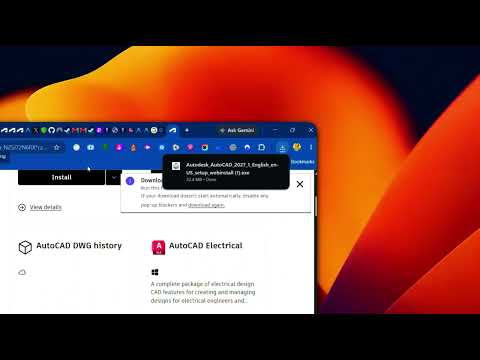
- Choose a Download Method: Select "Install Now" for the fastest automated setup, or "Download Now" if you prefer to save the installer for offline use.
- Run the Installer: Launch the downloaded executable file, accept the license agreement, and select your preferred installation folder along with any optional components.
- Launch and Activate: Once the installation finishes, open the application and log in or enter your license details to activate the software.
Troubleshooting Common Setup Issues
If you encounter errors during the setup process, try disabling your firewall or antivirus software temporarily, as these can sometimes block necessary setup files. Additionally, running the installer as an administrator often resolves permission-related issues. Selecting the correct setup options for your Autodesk software ensures that your digital workspace operates efficiently without unexpected crashes.
Conclusion
By following these simple steps, you can avoid common errors and get your tools running efficiently. Once your setup is complete, you are ready to bring your design, architecture, and engineering projects to life!


