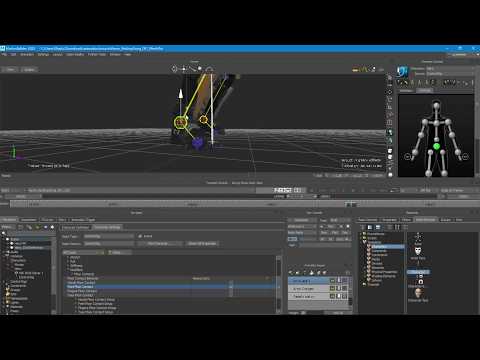
When it comes to professional character animation and motion capture editing, Autodesk MotionBuilder remains the industry gold standard. However, even the best raw motion capture data often requires a significant amount of "cleaning" before it is ready for a production pipeline. Two of the most critical aspects of this cleanup process are managing Floor Contacts and utilizing the In-Place mode.
Why Floor Contacts Matter
One of the most common issues in 3D animation is "foot sliding" or characters sinking through the floor. This immediately breaks the immersion and makes the movement feel weightless. By properly configuring Floor Contacts within the Character Definition settings, you can ensure that your character’s feet (and hands, if necessary) interact realistically with the ground plane.
Setting up these contacts allows the software to calculate the relationship between the character's markers and the floor height. This ensures that when a heel or toe touches the ground, it stays locked in place until the weight is shifted, providing that essential sense of physical presence and gravity.
The Importance of In-Place Animation
For game developers, "In-Place" animation is a vital part of the workflow. While cinematic animations often involve a character moving across global space, game engines frequently require the character to perform their walk or run cycle at the origin (0,0,0) while the engine handles the actual translation.
Within Autodesk MotionBuilder, the In-Place setting allows animators to strip away the global movement temporarily. This makes it significantly easier to spot jitters, pops in the knees, or inconsistencies in the stride that might be hidden when the character is moving across the screen. Once the animation is polished in place, you can toggle it back or export the data as needed for your specific engine requirements.
Streamlining Your Cleanup Workflow
The key to a fast turnaround is a consistent cleanup routine. Start by stabilizing your character using Floor Contacts to fix any vertical placement issues. Once the feet are planted firmly, switch to an In-Place view to refine the loops and remove any remaining mocap noise.
By mastering these fundamental tools in Autodesk MotionBuilder, you can transform raw, shaky data into high-quality, professional-grade animation. Whether you are working on a feature film or a competitive indie game, these techniques will drastically improve the believability of your character's movement.


