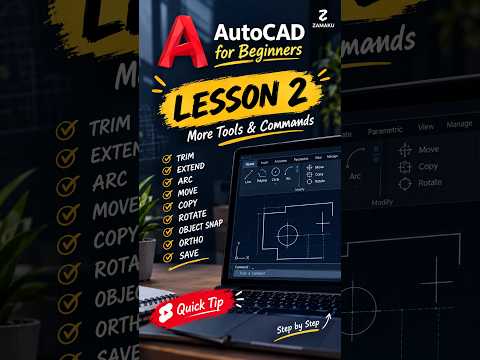
When working on complex 2D or 3D drafting projects, efficiency and accuracy are key. Among the vast toolkit available in Autodesk AutoCAD, two fundamental editing commands stand out for daily line work: Trim and Extend. While both tools modify existing geometry, they serve opposite purposes. Understanding how and when to use each will dramatically speed up your design workflow.
What is the Trim Command?
The Trim command is designed to remove unwanted portions of objects that intersect with other elements. Whether you are cleaning up overlapping wall lines in an architectural floor plan or refining mechanical details, Trim keeps your drawing tidy.
To use Trim, simply type TR in the command line and press Enter. You can then click directly on any line segment you want to delete, and the software will cleanly trim it back to the nearest intersecting boundary.
What is the Extend Command?
Conversely, the Extend command lengthens lines, arcs, or polylines so they expand to meet a specified boundary. This tool is ideal when you need to close gaps, complete structural grids, or connect geometry that fell short.
To activate Extend, type EX into the command line and press Enter. Select the object you wish to lengthen, and it will automatically stretch forward until it hits the next available boundary edge.
Pro Tip: The Secret Shift Key Shortcut
Here is a quick efficiency tip that many beginners overlook: you do not need to cancel your command to switch between trimming and extending!
While using the Trim command in Autodesk AutoCAD, simply press and hold the Shift key. The active command will temporarily switch to Extend. Click on a line to lengthen it, then release the Shift key to instantly return to trimming. This seamless workflow trick works in reverse as well when using the Extend command.
Conclusion
Mastering basic geometry editing commands is essential for any professional designer or drafter. By understanding the dynamic between Trim and Extend—and utilizing time-saving shortcuts—you can optimize your overall speed and precision in Autodesk AutoCAD. Give these techniques a try on your next project to create clean, professional CAD drawings effortlessly!


