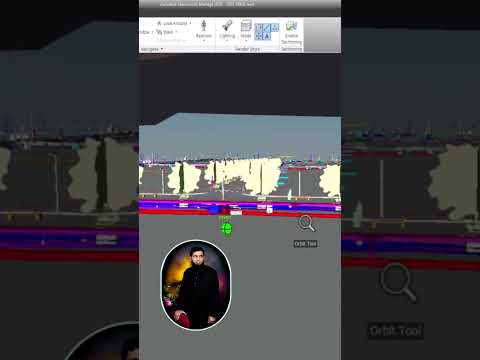
In the world of Building Information Modeling (BIM), communication and visualization are the keys to a successful project. With the release of the latest version, Autodesk Navisworks continues to be the industry standard for project review, allowing professionals to coordinate, simulate, and optimize their designs before construction begins.
One of the most effective ways to communicate complex spatial data is through the use of Viewpoints and Animations. In this guide, we will explore how to master these tools within the 2026 interface to enhance your project presentations.
Why Viewpoints Matter in Your Workflow
Viewpoints are more than just simple snapshots of your 3D model. They act as "digital bookmarks" that save specific camera positions, hidden items, and even sectioning planes. When utilizing Autodesk Navisworks, viewpoints allow you to jump instantly to critical areas of the building, such as complex mechanical rooms or structural intersections, making it easier to discuss issues during clash detection meetings.
To create a viewpoint, simply navigate to your desired location in the model, right-click in the Saved Viewpoints window, and select "Save Viewpoint." You can also add redlines and comments to these views, ensuring that no detail is overlooked by your team.
Transitioning from Static Views to Dynamic Movies
Once you have curated a series of viewpoints, you can transform them into a professional walkthrough animation. This is a game-changer for client presentations and stakeholder reviews. By organizing your saved viewpoints into an "Animation" folder, the software automatically creates a smooth transition between each camera position.
To do this within the Autodesk Navisworks environment: 1. Open the Saved Viewpoints window. 2. Right-click and select "Add Animation." 3. Drag and drop your pre-saved viewpoints into this new animation folder. 4. Right-click the animation and select "Play" to see your model come to life.
Enhancing Presentation Quality
The 2026 updates offer improved rendering and smoother playback, making your project walkthroughs look more realistic than ever. Whether you are conducting a construction sequence simulation or a simple site fly-through, the ability to export these animations as movie files ensures that even non-technical stakeholders can understand the project's vision.
By mastering these fundamental tools, you not only improve your efficiency but also bring a higher level of professionalism to your BIM coordination process. Stay ahead of the curve by integrating these visualization techniques into your daily workflow.


