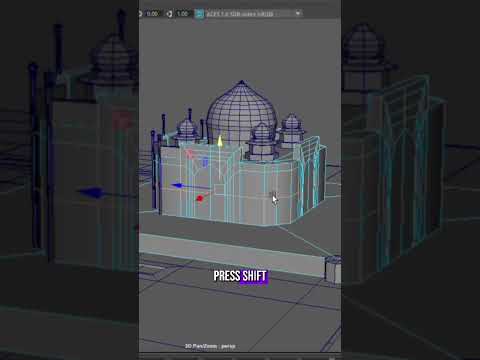
If you have ever spent hours refining a complex 3D model only to ruin its underlying shape with a single bad drag, you are not alone. Sliding edges while preserving surface curvature is one of the fundamental challenges every 3D artist faces. Fortunately, Autodesk Maya provides simple yet powerful tools to slide edges cleanly without destroying your mesh's carefully constructed topology.
Why Proper Topology and Edge Flow Matter
Clean topology is essential for smooth shading, predictable UV unwrapping, and realistic deformation during character animation. When you manually translate an edge loop along standard global or local axes, you risk flattening rounded surfaces or creating unsightly pinching artifacts.
By utilizing built-in edge sliding techniques in Autodesk Maya, you can slide edge loops directly along the surface vectors of adjacent geometry, keeping your surface curvature intact and your mesh pristine.
How to Slide Edges Cleanly in Maya
To move edge loops without altering your model's overall volume, follow these simple steps:
- Select Your Edges: Double-click an edge to select the entire edge loop, or hold Shift to select specific edge segments.
- Activate the Transform Constraint:
- Open the Modeling Toolkit panel on the right side of your workspace.
- Locate the Transform Constraint dropdown menu and switch it from Off to Edge.
- Alternatively, hold Ctrl + Shift while dragging the edge using the standard Move Tool to temporarily engage edge sliding.
- Reposition the Geometry: Drag the selected edges along your mesh. Notice how the edge loop glides smoothly across neighboring faces without pushing outward or collapsing inward.
- Reset Constraints: Once you are done repositioning, remember to switch your Transform Constraint back to Off to avoid unintended sliding during normal modeling tasks.
Pro Tips for Better Modeling Efficiency
- Keep Spacing Even: Unless you are creating sharp holding edges for subdivision modeling, try to maintain uniform quad spacing for optimal surface deformation.
- Utilize Target Weld: If sliding an edge brings it too close to an existing loop, consider welding vertices to simplify your geometry instead of crowding it.
Mastering edge slide workflows in Autodesk software will dramatically speed up your modeling process and lead to cleaner, professional-grade 3D assets. Next time you need to adjust edge placement, skip the hassle of manual tweaking and let Maya’s constraint tools do the heavy lifting!


