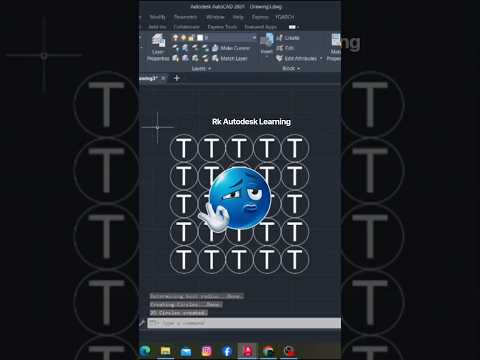
When working on complex drafting projects in Autodesk AutoCAD, clarity and speed are paramount. Annotating drawings effectively ensures that callouts, item numbers, and revisions are easy for team members and clients to read. While manual methods like drawing individual circles around text work, they are slow and often lead to inconsistent sizing.
Fortunately, there is a powerful Express Tool designed specifically to streamline this process: the TCIRCLE command. Here is a step-by-step guide on how to master this feature and boost your drafting efficiency.
What is the TCIRCLE Command?
The TCIRCLE (Text Circle) command is a built-in feature within AutoCAD's Express Tools library. Instead of manually drawing a shape and attempting to center text inside it, TCIRCLE automatically places a circle, slot, or rectangle around any selected single-line or multiline text objects while maintaining precise alignment and spacing.
How to Circle Text with TCIRCLE Step-by-Step
Using TCIRCLE is quick and straightforward. Follow these steps to enclose your text in seconds:
- Activate the Command: Type
TCIRCLEinto the command line and press Enter. - Select Text: Click on the text object (or select multiple text objects) you wish to enclose, then press Enter.
- Set Offset Factor: Enter a distance offset factor (the default is typically
0.35). This determines the margin between the text and the boundary shape. - Choose Enclosing Shape: The command prompt will present three options: Circles, Slots, or Rectangles. Select Circles.
- Select Object Sizing:
- Constant: Creates identical circles based on the largest text object selected (ideal for uniform callouts).
- Variable: Scales each circle individually to fit its specific text object.
Once you complete these steps, your text will instantly be enclosed in perfectly formatted geometric shapes.
Why Use TCIRCLE in Your CAD Workflow?
By automating repetitive annotation tasks, Autodesk enables designers and engineers to focus on precision and creative problem-solving rather than tedious formatting. Using TCIRCLE ensures perfect centering, saves valuable drafting time, and keeps your technical drawings looking clean and standardized.
Try integrating the TCIRCLE command into your daily routine to immediately elevate the quality and speed of your drafting output!


