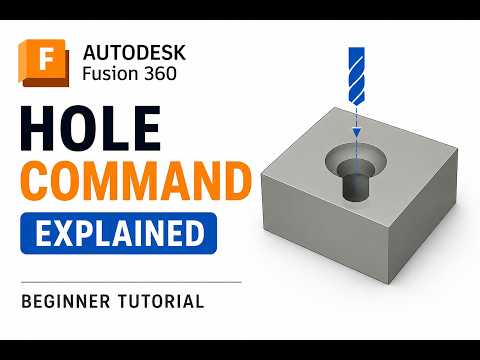
Creating precise geometry is at the heart of any successful 3D design project. When working with Autodesk Fusion 360, one of the most essential features you will use repeatedly is the Hole Command. While beginners often resort to drawing a circular sketch and using an extrude cut, using the dedicated Hole tool is far more efficient, accurate, and professional.
In this quick tutorial, we will explore how to master the Hole command in Autodesk Fusion 360 to streamline your 3D modeling workflow.
Why Use the Dedicated Hole Tool?
Although sketching a circle and extruding it downward creates a basic opening, the Hole command offers specialized engineering features that simple extrusions lack:
- Standardized Fasteners: Access built-in thread standards like ISO, ANSI, and DIN directly within the tool interface.
- Advanced Hole Profiles: Easily create counterbore, countersink, or simple stepped holes without drawing complex 2D profiles.
- Custom Tip Angles: Model realistic drill bit point angles at the bottom of blind holes for accurate manufacturing specs.
Using the specialized Hole feature ensures your digital prototypes match real-world machining processes seamlessly.
Step-by-Step: How to Use the Hole Command
- Activate the Tool: Select the Hole tool from the Create panel or press the keyboard shortcut H.
- Select Placement: Click on the face where you want to place the hole. You can position it precisely by referencing edges, sketch points, or center points.
- Choose the Hole Type: Select between Simple, Counterbore, or Countersink depending on the fastener you intend to use.
- Define Dimensions & Tap Options: Input your required diameter and depth. If you need internal threads, select the Tapped option to set thread size and designation.
Boost Your 3D Design Efficiency
Learning the full capabilities of Autodesk software tools transforms how fast you move from initial concept to final production. By relying on the Hole command rather than manual sketch cuts, you preserve parametric editability. This means you can update hole sizes, thread types, or depths across your entire assembly in seconds.
Whether you are building basic functional parts or complex mechanical assemblies, mastering this fundamental tool will elevate your CAD modeling skills to the next level.


