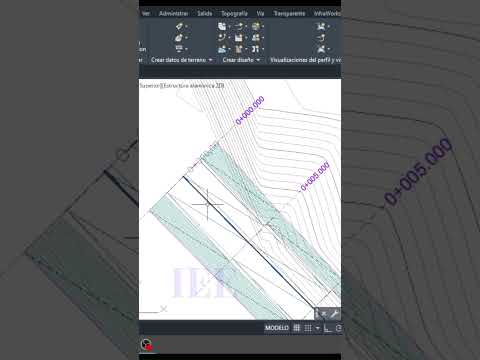
When working on complex engineering designs, overlapping lines, polylines, and blocks can quickly turn into a major drafting headache. Trying to select a specific element hidden beneath another object often leads to misclicks, lost time, and unnecessary frustration. Fortunately, Autodesk Civil 3D includes a powerful built-in feature designed to solve this exact problem: Selection Cycling.
What is Selection Cycling?
Selection Cycling is a essential productivity tool within Autodesk Civil 3D that detects when multiple objects occupy the exact same visual space on your screen. Instead of forcing you to guess or use time-consuming isolation commands, Selection Cycling displays a small pop-up list showing every stacked object beneath your cursor. This allows you to inspect and pick the precise element you need on your very first click.
How to Enable and Use Selection Cycling
Activating and using Selection Cycling in your daily workflow takes only a few seconds:
- Use the Shortcut: Press
CTRL + Won your keyboard to instantly toggle Selection Cycling on or off. - Enable via the Status Bar: Look at the bottom-right corner of your workspace (the Status Bar). Click on the Customization icon (three horizontal lines) and ensure Selection Cycling is checked. The Selection Cycling icon will appear on your status bar and light up blue when active.
- Select Your Target Object: Hover over any area with stacked elements and click. A small box will appear listing the overlapping items (such as lines, polylines, 3D faces, or alignment labels). Click the specific item you want to edit.
Boost Your CAD Drafting Efficiency
Mastering simple productivity features like Selection Cycling can dramatically improve your design accuracy and speed. Whether you are managing complex infrastructure models or editing intricate utility plans in Autodesk Civil 3D, knowing how to quickly isolate stacked elements ensures high precision while saving valuable drafting hours.
The next time you find yourself repeatedly clicking on overlapping geometry, toggle on Selection Cycling and keep your design process moving smoothly.


