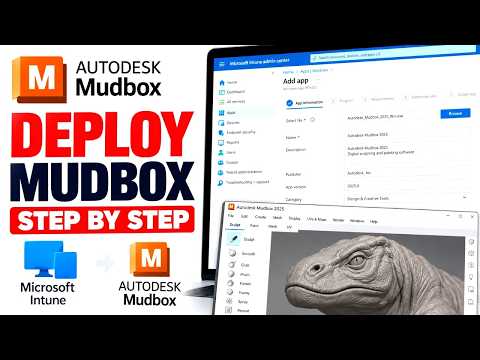
In the world of professional digital sculpting and texture painting, Autodesk Mudbox stands out as an essential tool for artists and designers. However, for IT administrators and technical managers, the challenge often lies in deploying this powerful software across dozens or even hundreds of workstations efficiently. Managing manual installations is no longer a viable option in a modern enterprise environment.
By leveraging Microsoft Intune, you can automate the entire deployment process, ensuring that your creative team has the tools they need without the headache of individual configurations. This guide will walk you through the essential steps to get Autodesk Mudbox up and running via the cloud.
Preparing the Installation Package
The first step in any successful Intune deployment is preparing your source files. Since Autodesk products typically come as large executable installers, you will need to convert the installation media into the .intunewin format using the Microsoft Win32 Content Prep Tool.
Before starting the conversion, ensure you have the silent installation parameters ready. For most Autodesk products, using a deployment image created through your Autodesk Account is the most reliable method, as it packages the serial information and custom settings directly into the installer.
Configuring the App in Microsoft Intune
Once your package is ready, log in to the Microsoft Endpoint Manager admin center. Navigate to the "Apps" section and add a new "Windows app (Win32)." During the upload process, you will need to specify the following:
- Install Command: Usually
setup.exe /t /q /w /i setup.xml(depending on your custom deployment configuration). - Uninstall Command: A specific GUID or script that removes the software cleanly.
- Detection Rules: This is a critical step. Use a File or Registry-based detection rule to allow Intune to verify that the software was installed correctly.
Assignment and Deployment
After configuring the app metadata and requirements—such as minimum operating system version and disk space—it is time to assign the application. We recommend deploying Autodesk Mudbox to a small test group first to ensure the silent switches work as expected.
Once verified, you can change the assignment to "Required" for your broader production groups. Microsoft Intune will then handle the heavy lifting, pushing the software to devices automatically, whether they are in the office or working remotely.
Conclusion
Transitioning to cloud-based deployment for heavy-duty creative software doesn't have to be complicated. By following this structured approach, you can maintain a consistent software environment and significantly reduce the time spent on manual troubleshooting. With Microsoft Intune and this step-by-step method, managing your professional creative suite becomes a seamless part of your IT workflow.


