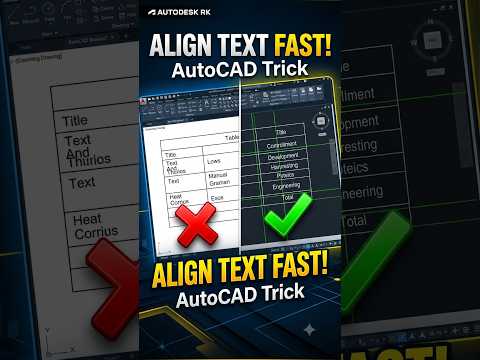
Presentation matters just as much as accuracy in technical drawings. Even when your underlying geometry and dimensional data are 100% correct, sloppy or misaligned text can make an otherwise perfect drawing look messy and unprofessional. If you are still spending valuable time nudging text entities one by one in Autodesk AutoCAD, it is time to upgrade your workflow.
Manually aligning text elements isn't just frustrating—it wastes critical design time that could be spent on complex drafting and modeling tasks. Luckily, there are powerful built-in commands designed to streamline this process effortlessly.
Why Precise Text Alignment Matters
In professional engineering and architectural documentation, visual clarity is key. Inconsistent text placement creates unnecessary clutter, leading to potential misinterpretations on the construction floor or assembly line. Clean, neatly aligned annotations not only enhance readability but also reflect high standards of draftsmanship and professionalism.
Quick Tools to Align Text Automatically
Instead of relying on manual placement or drawing temporary construction lines, take advantage of automated annotation features:
- The
TEXTALIGNCommand: This handy feature allows you to select multiple text objects and instantly align them horizontally, vertically, or along a specific angled path. Simply start the command, pick your text objects, select a base alignment line or object, and watch everything snap into place. - Adjust Text Justification (
TJUST): Before aligning, make sure your text justification settings (Left, Center, Right, Top-Left, etc.) match your layout needs. Changing justification without shifting the text point ensures future text edits remain aligned. - Match Rotations Quickly: For drawings with angled geometry, align your text orientation relative to existing lines using quick alignment tools or Express Tools like
TORIENT.
Streamline Your Technical Documentation
Mastering simple efficiency shortcuts inside Autodesk AutoCAD transforms how you approach annotation tasks. By replacing tedious manual adjustments with smart alignment commands, you save hours on large-scale drafting projects while maintaining pristine visual standards.
Start implementing these automated text alignment techniques today and turn chaotic technical drawings into clean, presentation-ready deliverables in seconds!


