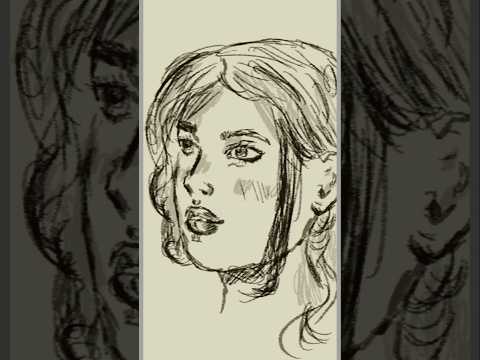
Have you ever had a sudden, random idea strike you out of nowhere? Inspiration is unpredictable, but thanks to modern mobile devices, capturing those creative sparks has never been easier. With powerful digital drawing applications like Autodesk SketchBook, you can transform simple mobile doodles into incredible digital art anytime, anywhere.
Why Mobile Drawing Captures Instant Inspiration
In the past, artists had to carry heavy sketchbooks, pencils, and painting supplies to capture moments of inspiration. Today, your smartphone or tablet serves as a portable studio. When a random idea pops up—whether you are commuting, waiting in line, or relaxing at a cafe—you can immediately open a blank canvas on your screen. Mobile sketching breaks down the barrier between your imagination and reality, allowing you to quickly block out shapes, colors, and concepts before the idea fades away.
Bringing Your Ideas to Life with Autodesk SketchBook
Transforming a rough doodle into a finished piece requires intuitive software. Creating digital masterpieces on the go is seamless with Autodesk SketchBook, thanks to its clean interface and professional-grade brush engine. The app offers a wide variety of customizable tools, including pencils, markers, synthetic paintbrushes, and smudge tools that replicate traditional media seamlessly.
By taking advantage of features like unlimited layers, blend modes, and symmetry guides, you can refine your initial random concept step by step. Start by blocking out your basic lines, refine the line art on a new layer, and then experiment with vibrant color palettes and shading to add depth and emotion to your piece.
Tips to Polish Your Digital Artwork
- Start with a Rough Sketch: Don't worry about perfection initially. Use a light pencil tool to capture the basic form and flow of your idea.
- Utilize Layers Effectively: Keep your line art, base colors, and shading on separate layers so you can make adjustments without ruining your previous work.
- Experiment with Textures and Blending: Blend colors smoothly to create realistic lighting and atmospheric effects that make your digital art pop.
Final Thoughts
Great art often begins with a single, unplanned moment of creativity. Don't let your random ideas pass you by without giving them a chance to bloom into something extraordinary. Grab your stylus, open Autodesk SketchBook, and see where your imagination takes you today!


