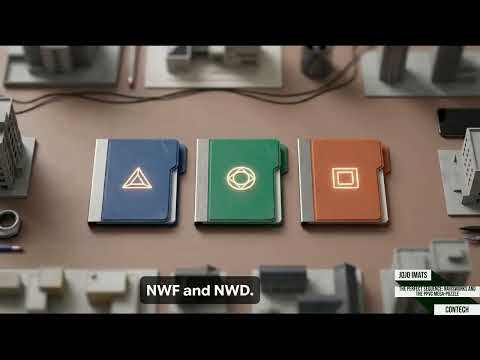
When coordinating complex BIM (Building Information Modeling) projects, Autodesk Navisworks stands out as the industry standard for 3D model review, clash detection, and project simulation. However, both beginners and experienced professionals often struggle to differentiate between the three core file extensions used within the platform: NWC, NWF, and NWD. Understanding how these formats work—and when to use each—is vital for optimizing your workflow and keeping project data lightweight and organized.
1. NWC (Navisworks Cache File)
An NWC file is automatically generated whenever you open or export a native CAD or BIM file (such as Revit, AutoCAD, or IFC) into the software.
- What it does: It creates a lightweight cache of the original model's geometry and object properties.
- Best used for: Speeding up load times. The next time you load your project, Autodesk Navisworks reads the NWC file instead of re-converting the original source file from scratch.
2. NWF (Navisworks File Set)
Think of an NWF file as the dynamic "working hub" of your coordination process.
- What it does: Rather than storing actual 3D geometry, an NWF file contains pointers (links) to your source CAD or NWC files. It also saves all project-specific metadata created inside Navisworks, such as clash tests, markups, saved viewpoints, and redlines.
- Best used for: Active, ongoing project management. Because the geometry is linked live, updating the original design files will instantly reflect in your NWF file, keeping the overall file size exceptionally small.
3. NWD (Navisworks Document File)
An NWD file is a complete, self-contained snapshot of the entire project model at a specific point in time.
- What it does: It compiles all combined 3D geometry, object data, and Navisworks markup into a single packaged file.
- Best used for: Archiving project milestones or sharing complete models with external clients, contractors, and stakeholders who do not have access to the original source files.
Summary: Choosing the Right Format
Mastering file management in Autodesk Navisworks comes down to knowing your immediate goal:
- Use NWC files as automatic background cache files for fast performance.
- Use NWF files during active design coordination to ensure live model updates.
- Use NWD files to freeze milestones, archive data, or present final deliverables.
By utilizing the appropriate file extension at each project phase, you can ensure smooth collaboration and maximize team productivity across the entire AEC lifecycle.


