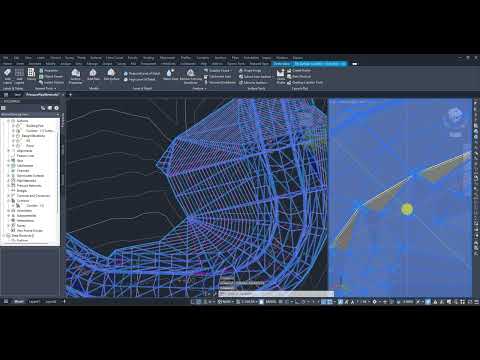
Corridor modeling is one of the most powerful features in civil infrastructure design, but geometric glitches can quickly derail your project progress. If you frequently design roads or alignments, you have likely encountered the dreaded "corridor bowtie"—an annoying issue where feature lines cross over themselves at sharp corners, creating messy, overlapping triangulations.
Fortunately, clearing corridor bowties is a quick fix that will save you hours of manual troubleshooting. In this guide, we will walk you through how to fix these corridor geometry issues efficiently.
What Causes Corridor Bowties?
Corridor bowties typically occur at sharp inner or outer corners where the assembly width exceeds the turning radius. When civil engineers and designers rely on Autodesk software to create precise infrastructure models, these overlapping links can distort surface contours and lead to inaccurate earthwork volume calculations.
Recognizing why these geometric errors happen is the first step toward building cleaner, more reliable design surfaces.
Step-by-Step: How to Clear Corridor Bowties
Fixing bowties in Civil 3D doesn't require recreating your corridor or baseline from scratch. Follow these straightforward steps to clean up your geometry:
- Select the Corridor: Click on the problematic corridor in your drawing area to activate the contextual ribbon.
- Launch the Tool: Navigate to the Modify Corridor panel and select the Clear Corridor Bowties command.
- Select Baseline/Subassembly Links: Pick the baseline segment or feature line where the bowtie occurs.
- Specify the Cleanup Region: Select the start and end points surrounding the overlapping corner.
- Apply the Fix: Press Enter. Civil 3D will automatically trim the overlapping links and resolve the triangulation issue instantly.
If you are working with complex intersections, utilizing built-in cleanup tools in Autodesk software helps maintain model integrity without requiring tedious manual feature line adjustments.
Why Geometry Cleanup Matters for CAD Professionals
Leaving corridor bowties unresolved can cause downstream errors, such as flawed surface grading, inaccurate quantity takeoffs, and display errors in profile views. Taking a few extra seconds to fix geometric errors ensures your deliverables remain clean, professional, and ready for construction.
Mastering simple time-saving techniques will dramatically boost your productivity and streamline your workflow when working with powerful Autodesk software solutions like Civil 3D. Keep applying these best practices to take full control of your corridor models!


