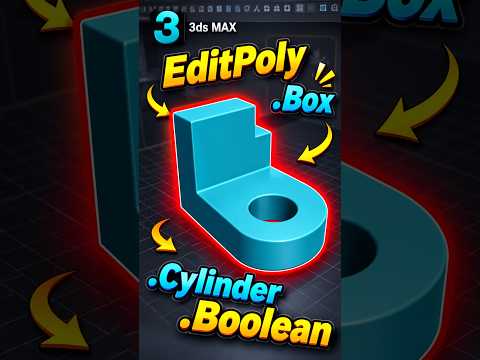
Creating detailed hard-surface models doesn't always require complex workflows or advanced techniques. Whether you are a beginner or an experienced 3D artist looking to speed up your production pipeline, mastering the fundamentals of Autodesk 3ds Max can significantly improve your modeling efficiency.
In this quick modeling breakdown, we will cover how to construct a clean mechanical bracket by combining basic primitive shapes—specifically Boxes and Cylinders—with essential Boolean operations.
Step 1: Blocking Out the Base Geometry
Every solid 3D model starts with simple primitive objects. To begin building the mechanical bracket, start by creating a basic Box object in your viewport. Adjust its dimensions to form the main body and thickness of the bracket base.
Next, create Cylinder primitives to represent the structural cutouts, bolt holes, and rounded joint points. Align these cylinders precisely where you want the holes and curved features to be carved out on your main box shape.
Step 2: Applying Boolean Operations
Once your primitive shapes are positioned correctly, it is time to leverage the powerful Boolean tools built into Autodesk 3ds Max.
- Select your primary base Box object.
- Go to the Create Panel, navigate to Compound Objects, and choose ProBoolean (or standard Boolean).
- Set your operation type to Subtraction.
- Click Start Picking and select the cylinders you created earlier.
This operation instantly carves clean, precise holes and cutouts directly into your base shape, transforming a simple block into a functional mechanical component.
Step 3: Refinement and Edge Chamfering
After completing the main cutouts, convert your model to an Editable Poly to clean up the topology. Select the sharp exterior edges and apply a Chamfer modifier or tool. Adding a subtle bevel to the sharp edges allows them to catch light naturally during rendering, giving your mechanical component a realistic, polished finish.
Conclusion
Hard-surface modeling doesn't have to be overwhelming. By combining basic primitives with smart Boolean techniques, Autodesk 3ds Max empowers creators to build complex mechanical parts in just a few minutes. Try applying these foundational steps to your next 3D project to build cleaner models faster!


